
Purchase Categorisation
Automatically classify transactions into your own categories — at whole-receipt level, per line item, or both — for expense management and spending insights.
Purchase Categorisation uses machine learning to assign categories to transactions based on the data extracted from receipts and invoices. It works at two levels — receipt-level (classify the whole transaction) and product-level (classify each line item) — and you define the category list, so results drop straight into your expense, budgeting, or analytics model.
Availability
AvailabilityThis feature is included on the Startup plan and above. Enable Product Categories in your account Feature Settings when the control is available. See Plans & Feature Access.
How It Works
- Extraction: merchant information, transaction details, and product line items are extracted from the document.
- Analysis: the extracted data is analysed by Taggun's machine learning models.
- Categorisation: a category from your defined list is assigned — to the whole transaction, to each line item, or both.
- Response field: A returned receipt-level category may include
confidenceLevel. See Understanding Your Results.
Set-Up (both levels)
The setup flow is the same whichever level you use:
-
Enable Product Categories in your account settings — see Availability above.
-
Define your categories in a CSV or TSV file with two columns:
categoryName— the category label used for categorisation and returned in API responses. Its exact spelling and casing are canonical.description— optional natural-language hints for disambiguating categories. Keep descriptions concise and test their effect on categorisation against your own documents.
An example category list — use it as your template:
categoryName description Parking Clothing Food & Drink do not include alcohol Fuel Medication prescription and over-the-counter medicines Road Use including both toll charges and road user charges Toiletries personal-care and hygiene products Taggun does not lower-case, upper-case, title-case, or otherwise case-normalise category labels. Use the spelling and casing you want returned in each uploaded
categoryName, and keep integrations and examples consistent with those exact labels. -
Upload your categories with Upload Product Categories. Each import replaces the entire stored taxonomy rather than merging with it, so include every category that should remain. Review your current mappings anytime with Export Product Categories.
-
Call a verbose extraction endpoint — Upload File (verbose), Encoded File (verbose), or URL (verbose).
Once enabled, the API attempts categorisation automatically on verbose extraction requests; return presence and usable values depend on the submitted document and configured taxonomy.
Receipt-Level Categorisation
Assigns one category to the entire transaction, based on the merchant and transaction details. Use it when you need each receipt filed under a single expense category.
Categorisation output is optional even when the feature is enabled. entities.category may be omitted or null, and its data value may be omitted or null. Within line items, entities.productLineItems[].data.category may likewise be omitted or null, and its data value may be omitted or null. Guard each level before using a category.
Access pathentities.category.data
Receipt-level worked example
A restaurant receipt provides the merchant and purchase context used for receipt-level categorisation. The response excerpt separately illustrates the documented shape and an account-configured Food & Drink label.
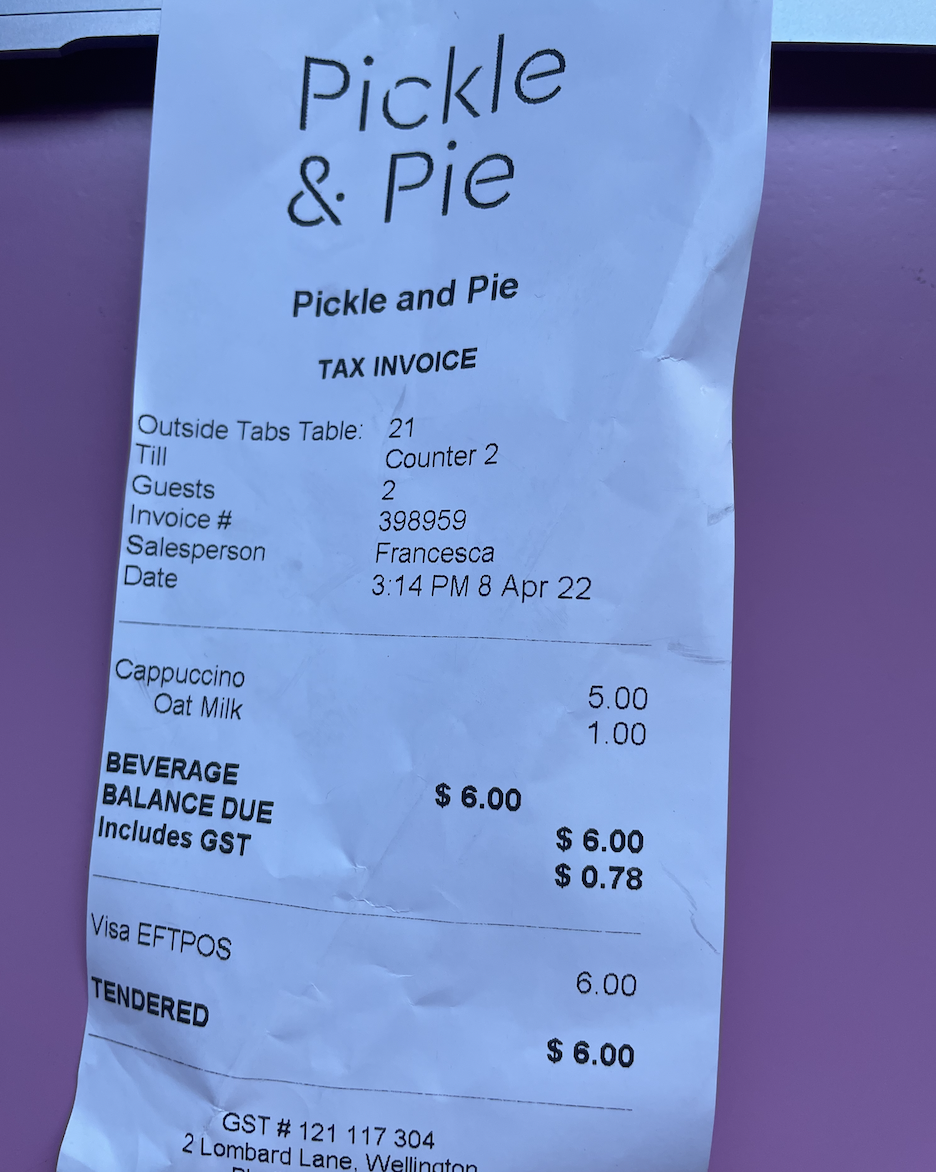
Illustrative restaurant purchase for receipt-level categorisation.
Response excerpt
{
  "entities": {
    "category": {
      "data": "Food & Drink",
      "confidenceLevel": 0.81
    }
  }
}
Use cases: corporate expense management · personal finance tracking · market analysis and consumer-behaviour insights.
Product-Level Categorisation
Assigns a category to each individual line item, based on the item description. Use it for granular basket-level insight.
Access path
entities.productLineItems[x].data.category.data— wherexis the index of the line item in theproductLineItemsarray.
Product-level worked example
A pharmacy receipt provides a product-line-item input example. Its visible line items are not the Medication and Toiletries pair in the response excerpt, so treat the image and response as separate illustrations. The response preserves the account-configured category casing.
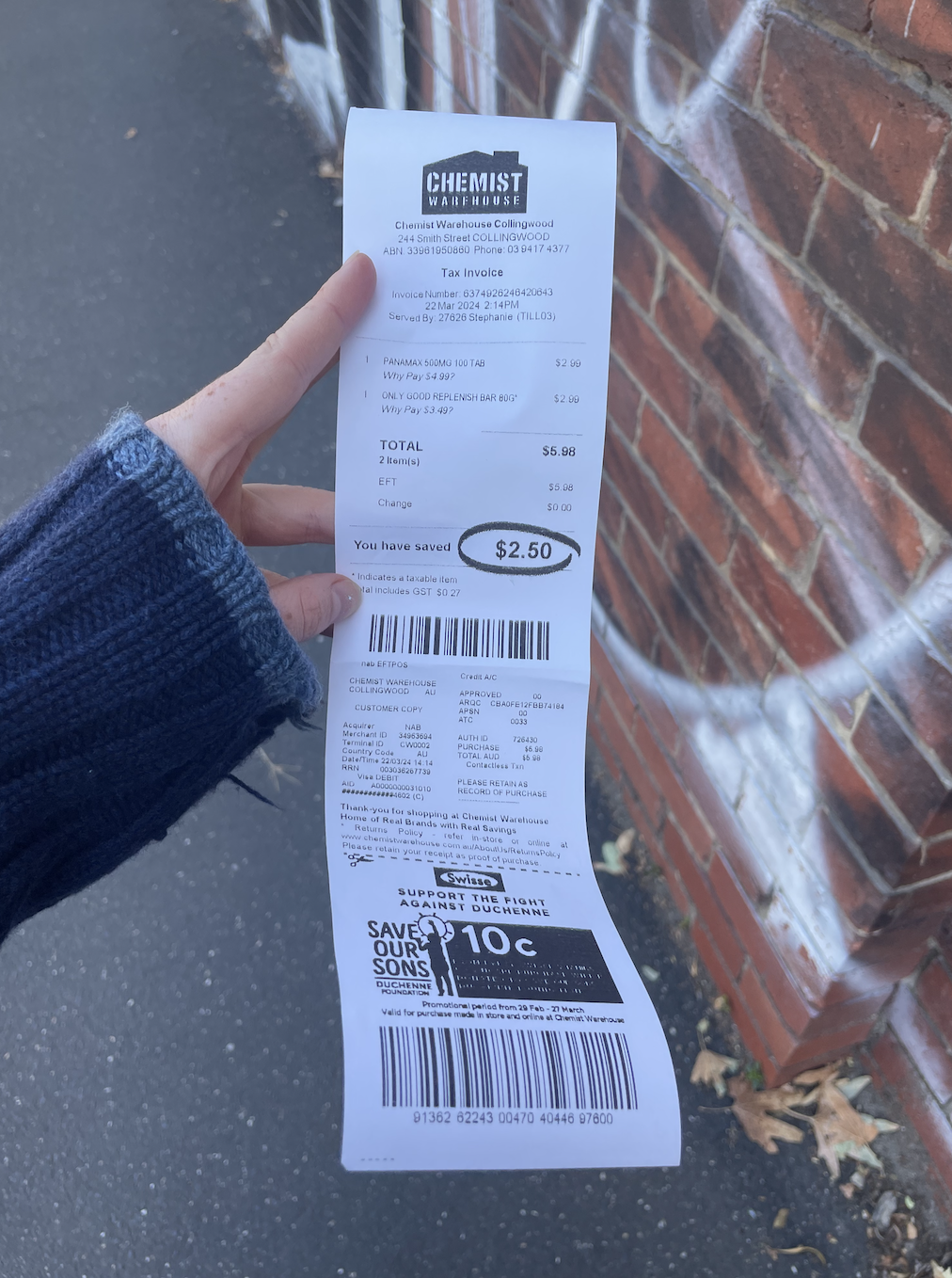
Illustrative product-level input. The response excerpt separately demonstrates the documented Medication and Toiletries category shape and is not the result for this image.
Response excerpt
{
  "entities": {
    "productLineItems": [
      { "data": { "category": { "data": "Medication" } } },
      { "data": { "category": { "data": "Toiletries" } } }
    ]
  }
}
Use cases: shopping-basket insights · detailed expense reports · budget tracking by product category · inventory management.
Considerations: unique or custom products can be harder to classify with broad categories, and vague item descriptions may produce broader categories. Line items themselves come from Line Item Extraction.
Best Practices
- Combine both levels for the most complete picture: receipt-level for filing, product-level for insight.
Customisation & Fine-Tuning
Categorisation is powerful out of the box, but it may need refinement for your unique setup. Start by refining category descriptions. Account-specific performance tuning is available on Advanced and Enterprise; contact support to discuss options.
Need something not covered here? Contact [email protected] — see Contacting Support.
Updated 2 months ago